IMPORTANT: This article only applies to specific products and/or operating systems. Please check the Applicable Products and Categories section of this article.
Select your TV type.
Set the time properly, and on the Clock display settings, choose On (always).
Notes:
- For some of the models equipped with an OLED panel, a constant display of the clock is not available to prevent image retention.
- The images are examples of the display screen.

How to set the time
- If the TV is connected to a network
- On the remote control, press the Quick settings
 or
or  ) button.
 - Select
 Settings.
 - Select System.
- Select Date & time.
- Set Automatic date & time to On or Automatically adjusts the time provided by your network or broadcast.
- If the TV is not connected to a network
- On the remote control, press the Quick settings (or ) button.
- Select Settings.
- Select System.
- Select Date & time.
- Set Automatic date & time to Off.
- Manually adjust the Time and Date.
How to set Clock display or Auto clock display to On (always)
- On the remote control, press the Quick settings (or ) button.
- Select Settings.
- Select System.
- Select Date & time.
- Select Clock display or Auto clock display.
- Select On (always).

How to check the time instantly
- If the remote control has a DISPLAY or
 button, you can also press the DISPLAY or button to temporarily display the time without setting the Clock display setting.
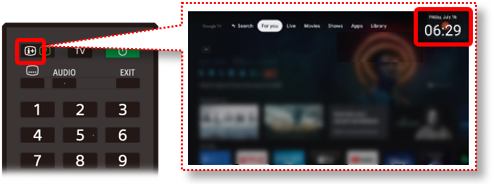
You can display the time on the TV screen with this operation anytime with any screen. It is also available with OLED models.
Hint:
- When the TV is displaying the Screensaver, the clock is displayed on the screen.

For how to set Screen saver, on the remote control, press the HOME button, and follow the steps below:
On the upper right of the Home screen, click the Account icon, and then select the Screensaver icon (a thumbnail with time).

If the Date & Time have been set, the time can be displayed in the upper-right of the Home screen.
Note: For some of the models equipped with an OLED panel, to prevent image retention, constant display of the clock is not available.
How to set the time
If the TV is connected to a network:
- On the remote control, press the HOME button.
- Select Settings.
- Select Device Preference.
Note: If Device Preference is not shown, skip this step.
- Select Date & time.
- The next step depends on the model:
- Set Automatic date & time to On.
- Select Automatic date & time - Use network time.
- Set Automatic date & time to On, and then set Time synchronization to Use network-provided time.
If the TV is not connected to a network:
- On the remote control, press the HOME button.
- Select Settings.
- Select Device Preference.
Note: If Device Preference is not shown, skip this step.
- Select Date & time.
- Set Automatic date & time to Off.
- Manually adjust the Date and Time.




















